
Find everything about a customer in one place
Every customer has one record that brings together everything your showroom knows about them: their details, how interested they are, what to do next, and every enquiry, test drive, quote, order and message. Anyone on your team who can see customers can open it.
Open a customer
- Sign in at https://vyro.co/access.
- Go to Customers.
- Find the customer. Type a name, email or phone number in Search customers, or sort and filter the list. To see your hottest leads first, sort by Lead score.
- Select the customer's name.
The top of the record
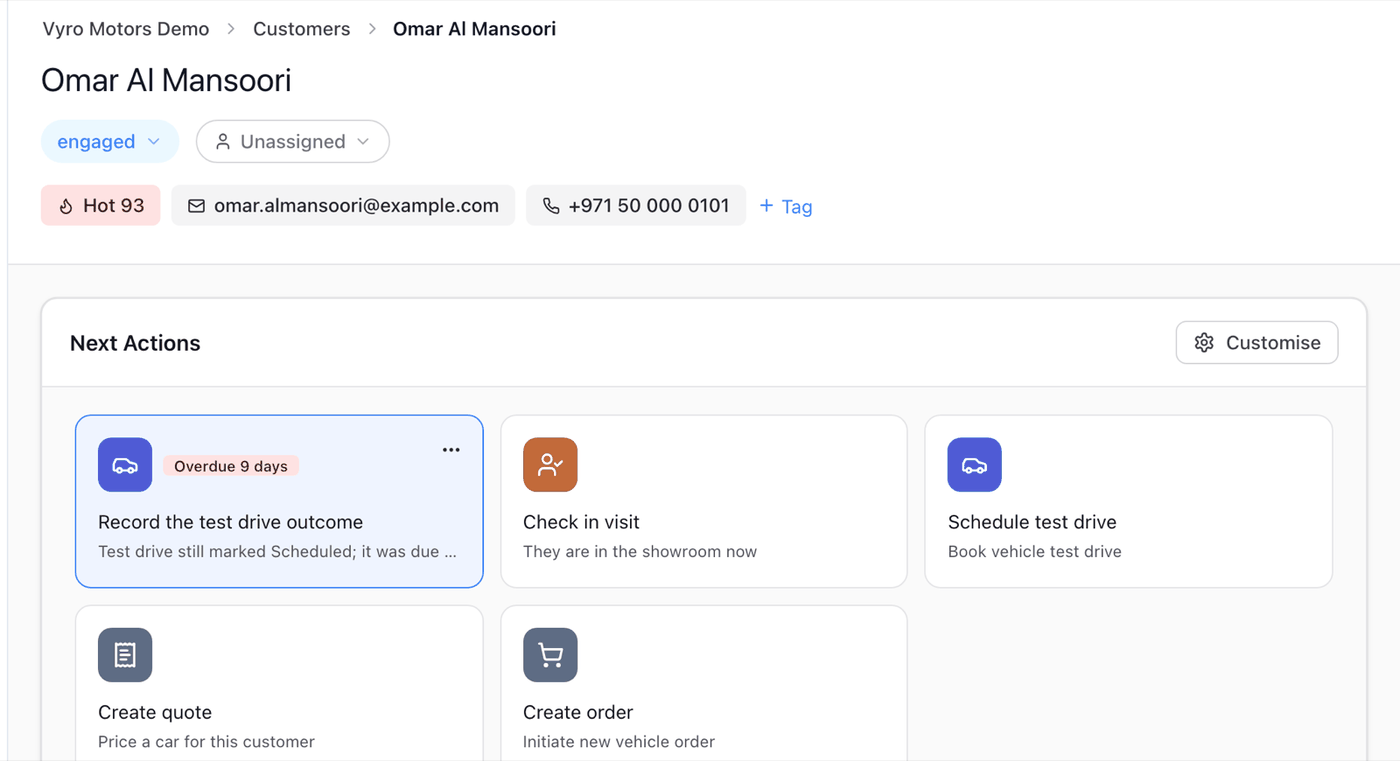
- Status. Where the customer is, such as engaged. Select it to change it.
- Owner. The person looking after this customer. Select it to assign them to yourself or someone else.
- Lead score. How likely they are to buy, such as Hot 93. The Customer tab lists why, under Why this score. See Use lead scores to decide who to follow up.
- Email and phone. The customer's contact details.
- Tag. Add a tag to group customers, for example for a campaign.
Next Actions
The cards under Next Actions are the things you can do for this customer now. The first card is often the next best action: the one thing most likely to move the sale on, such as Record the test drive outcome. See Use next best action to follow up customers.
The other cards start the common jobs: Check in visit when they are in the showroom, Schedule test drive, Create quote and Create order. Select Customise to choose which cards you see. Your choice is saved for you and doesn't change what your colleagues see.
The tabs
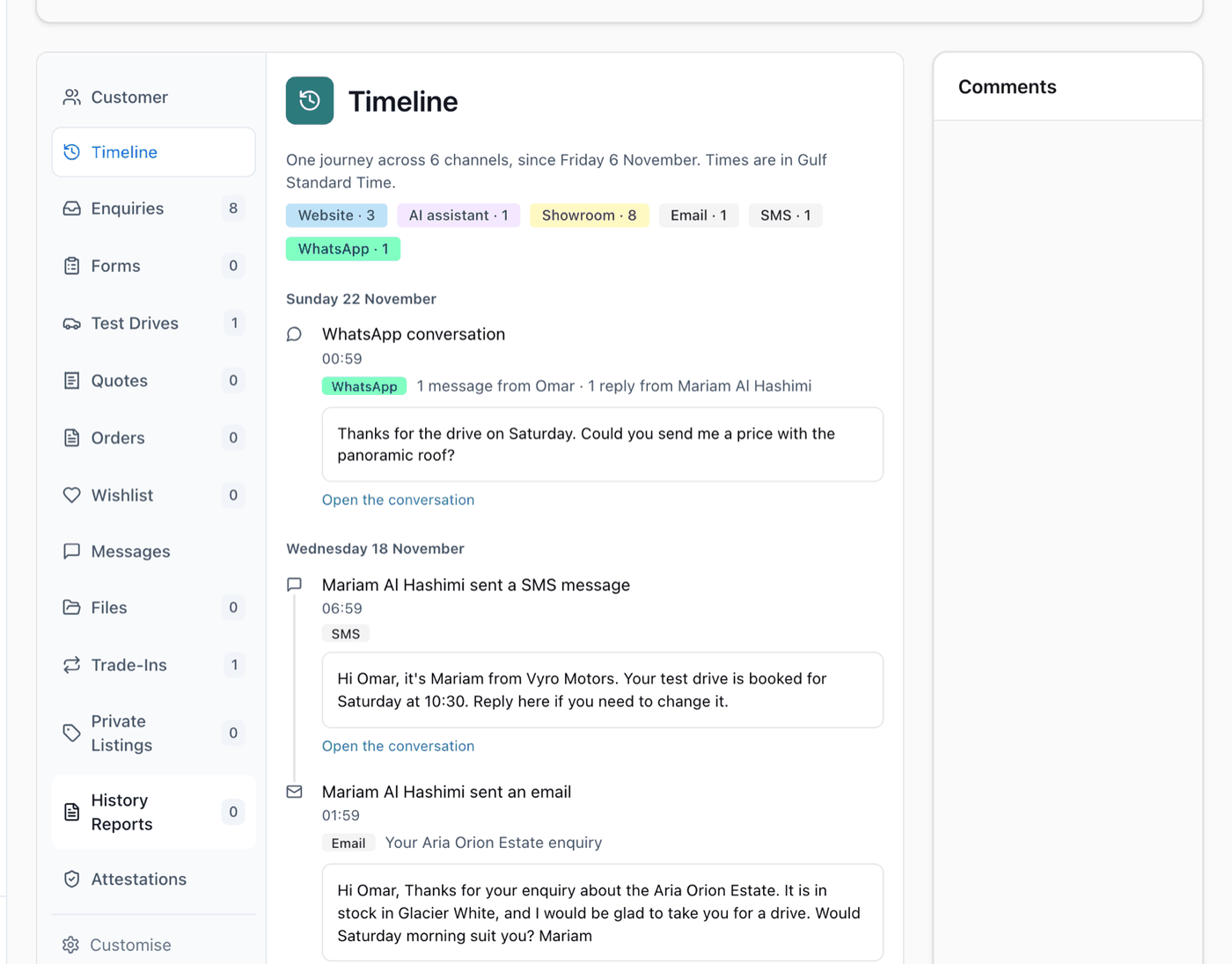
Below the cards, the tabs hold the customer's history. The number beside a tab is how many items it holds.
- Customer: their details. Select Edit to change them.
- Timeline: everything that has happened, newest first, across the website, the AI assistant, the showroom, email, SMS and WhatsApp.
- Enquiries, Forms, Test Drives, Quotes, Orders, Trade-Ins: each opens the list of that kind of item for this customer.
- Messages: one conversation across email, SMS and WhatsApp. See Message a customer by email, SMS or WhatsApp.
- Files, Wishlist, History Reports, Attestations: documents, saved cars, vehicle history reports and the consents the customer gave.
Select Customise at the bottom of the tabs to hide the ones you don't use. This also changes only your own view.
Comments
The Comments panel on the right is for your team only. The customer never sees it. Type @ and a name to mention a colleague.
Good to know
- A guest who enquired without an account shows as Guest. When they sign up or are matched to an existing customer, their history joins the one record.
- People with a reporting role can read customer records but cannot change them.