
Message a customer by email, SMS or WhatsApp
Every customer has one conversation that holds every email, SMS and WhatsApp message between them and your showroom, in order. Reply from the same place, on whichever channel suits the customer. Anyone who can edit customers can send messages.
Your showroom chooses the channels. Email and SMS go from your showroom's own address and number. WhatsApp needs your WhatsApp Business number connected. See Set up your showroom for selling.
Read the conversation
- Sign in at https://vyro.co/access.
- Go to Customers and open the customer.
- Open the Messages tab.
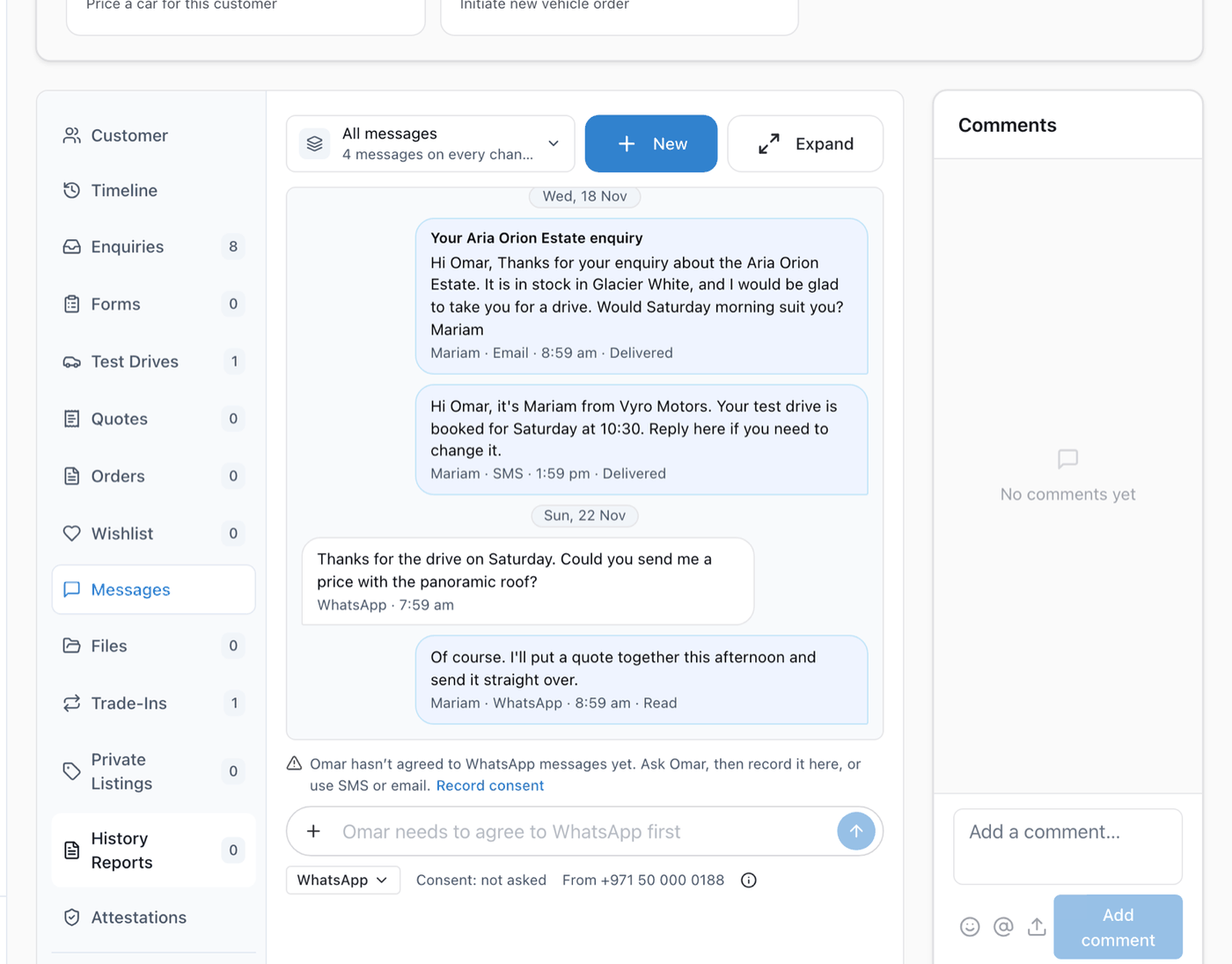
Messages you sent are on the right, with who sent them, the channel, the time and whether they were Delivered or Read. Messages from the customer are on the left. To see one channel only, select All messages at the top and choose it. Select Expand for a bigger view.
Send a message
- In the Messages tab, select New.
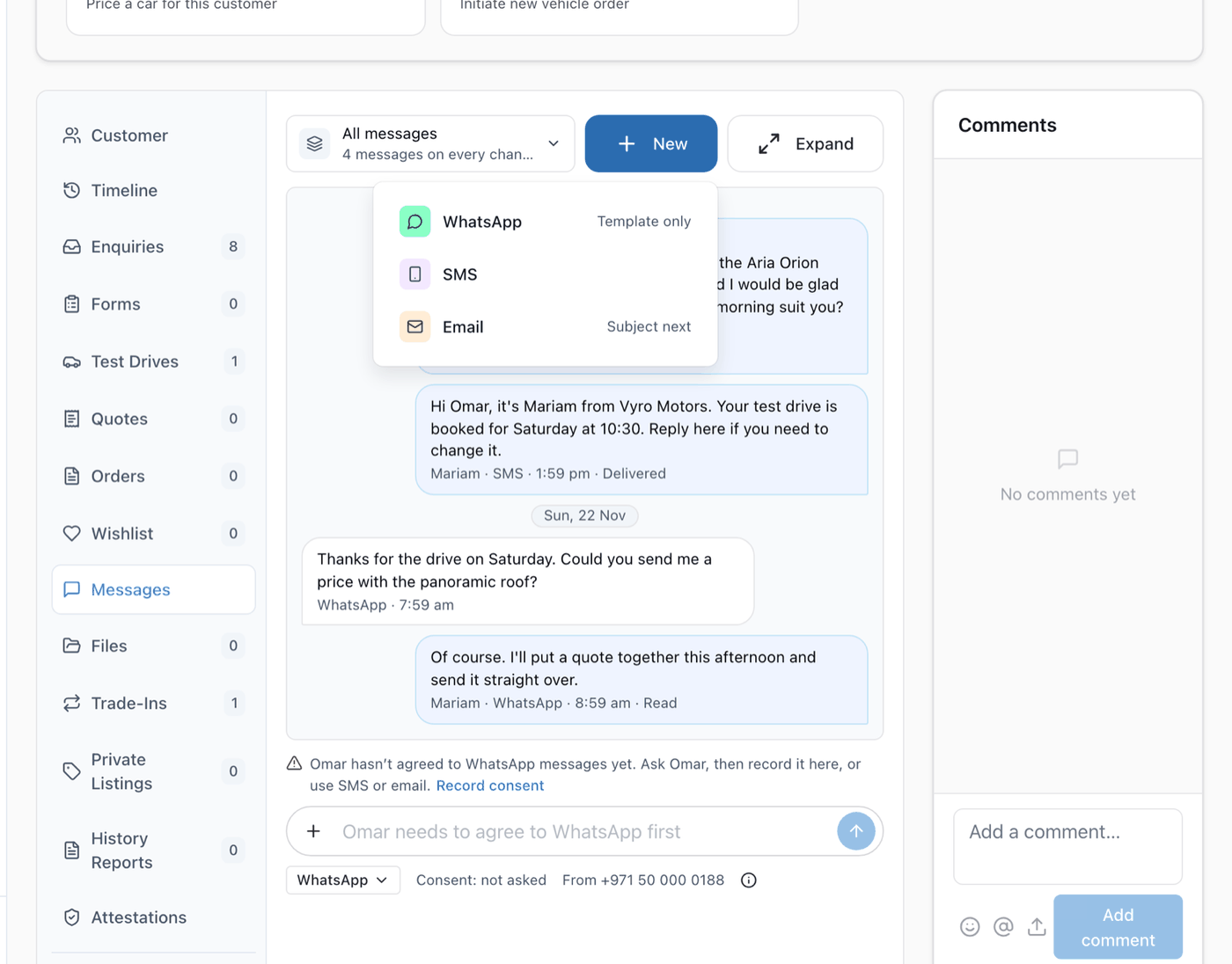
- Choose how to reach the customer:
- SMS: type your message.
- Email: type a subject, then your message.
- WhatsApp: reply in your own words if the customer wrote to you in the last 24 hours. Otherwise choose an approved template. Template only beside WhatsApp tells you which applies.
- Check the channel and the From number or address under the message box. The conversation now shows only that channel's messages; to see everything again, select the channel name at the top and choose All messages.
- Select the send button.
To reply on the channel the customer last used, type straight into the box at the bottom of the conversation. The channel is shown under the box; select it to change it, for example to SMS if the box says the customer needs to agree to WhatsApp first.
Result
Your message appears in the conversation and on the customer's Timeline. Its status changes to Delivered, then Read where the channel reports it. The customer's replies arrive in the same conversation.
Consent
Under the message box, Consent shows whether the customer agreed to WhatsApp messages. If they haven't, a note says so and WhatsApp is held back. Ask the customer, then select Record consent, or use SMS or email instead. A customer who opted out of a channel can't be messaged on it.
Good to know
- A message that couldn't be delivered, for example to a wrong number, is marked in red. Check the customer's details, then send it again.
- If no channel can reach the customer, the tab says what's missing, such as a phone number or email address on their record.
- Messages your workflows send, such as booking confirmations, appear in the same conversation, from Workflow.