
Check in a walk-in customer
When someone walks into your showroom, check them in from your phone, tablet or computer. You get an enquiry assigned to you, linked to the right customer. Anyone on your team who can create enquiries can check a visitor in.
Steps
Sign in at https://vyro.co/access.
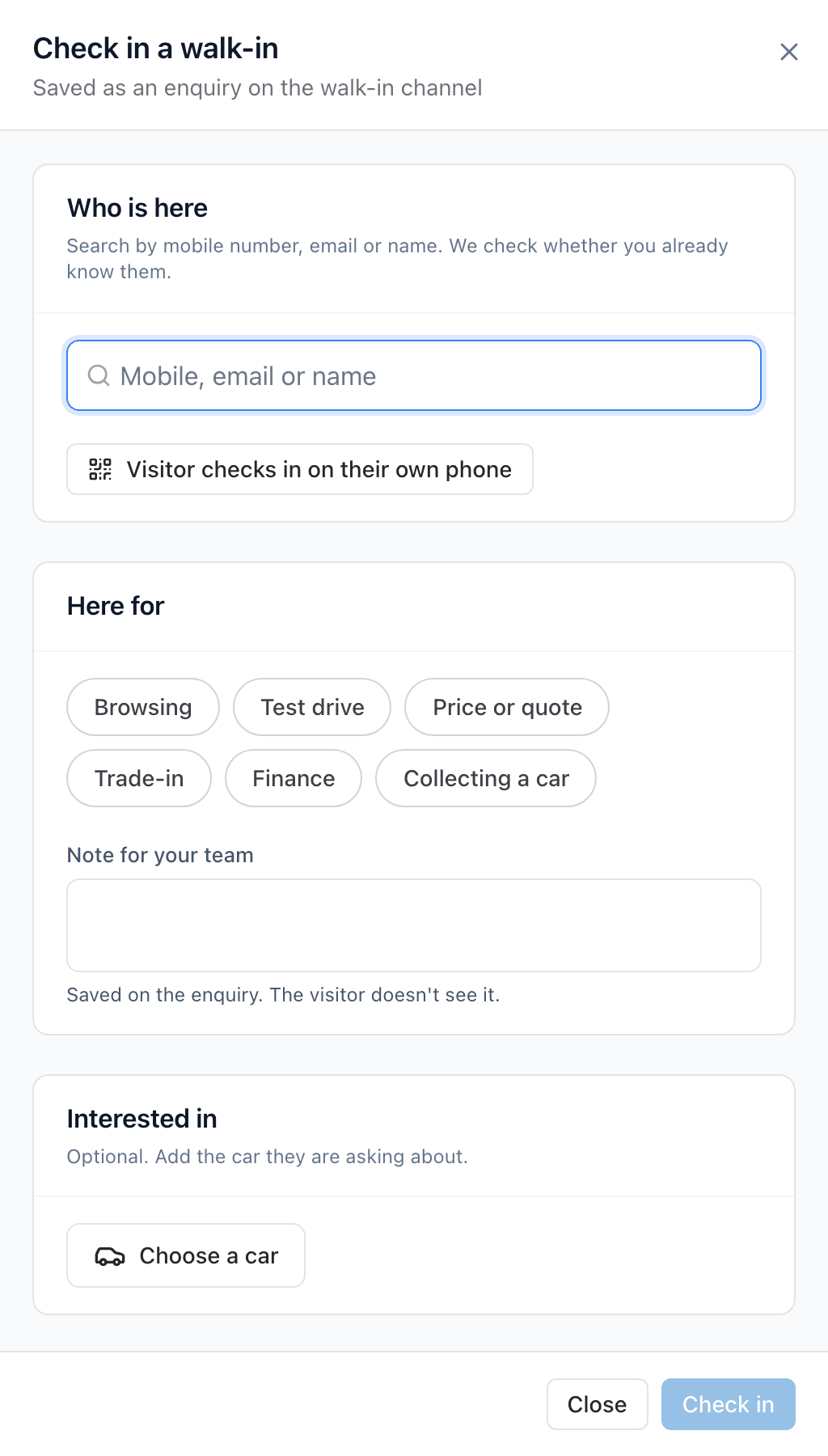
Go to Customers and select Check in walk-in. The same button is on Enquiries.
Search for them by mobile number, email or name. Anyone you already know appears underneath with their past enquiries, test drives and orders.
Select the right person. A match on a full mobile number or email is selected for you. If none of them is your visitor, choose None of these.
For a new visitor, check their First name and add a Mobile number or an Email. What you searched for is already filled in. With an email they get a customer account; without one they are saved as a guest, and you can make them a customer later.
Under Here for, select why they came. Add a Note for your team if it helps the next person who picks this up.
Under Interested in, select Choose a car if they have one in mind.
Under Consent, tick only what the visitor has agreed to in front of you. Anything they agreed to on an earlier visit is already ticked.
Check Consultant and Location. The consultant starts as you. Choose the location if it's empty.
Select Check in.
Result
You land on the customer's record, on their Enquiries tab. If you ticked Test drive under Here for, you land on their Test Drives tab with a booking ready to fill in instead. The new enquiry is on the walk-in channel and assigned to the consultant. It also shows in Enquiries like any other enquiry. A guest lands on their guest page.
Check in a customer you already have open
On the customer's record, select Check in visit under Next Actions. The form skips the search and starts at Here for. If you don't see the action, select Customise to show it.
Book a test drive straight after
When you select Test drive for a visitor with a customer account, Book the test drive next is ticked for you. The button changes to Check in and book test drive, and the booking opens on the customer's Test Drives tab with the customer, the car and the location already filled in.
A guest cannot be booked for a test drive. Add their email to give them an account.
Let visitors check themselves in
- Open Check in walk-in and select Visitor checks in on their own phone.
- If you have more than one location, choose the Location.
- The visitor scans the QR code with their phone camera and fills in your website enquiry form. You can also copy the link, or print the code for your front desk.
Their enquiry arrives in Enquiries on the walk-in channel, not yet assigned to anyone.
This needs a live website that lets visitors enquire without signing in. If yours doesn't, the screen tells you what to change.
Good to know
- Open it faster. Add
?checkIn=1to the end of your Customers address and save that page to your phone's home screen. It opens straight to the check-in. - Consent wording comes from your enquiry attestations in Settings. A box you leave unticked is recorded as not asked, not as a no.
- Mobile numbers match on the last nine digits, so it does not matter whether a number was saved with or without the country code.
- Small typing slips are forgiven. If nothing matches exactly, you see close matches under No exact match. Is it one of these? Check it is the right person before you select them.
- A name never selects anyone for you, because two customers can share one.
- Don't want it? An owner or manager can switch off Walk-in Check-in under Settings, General, Enquiries.