
Book and run a test drive
Book a test drive for a customer, choose the car, and move it through its stages: Scheduled, In progress and Completed. Customers can also book on your website; those bookings arrive in the same list. Anyone who can edit test drives can do this.
Book a test drive
Sign in at https://vyro.co/access.
Open Test Drives: if it isn't in the menu on the left, select All services at the bottom left, then Test Drives. Select New Test Drive.
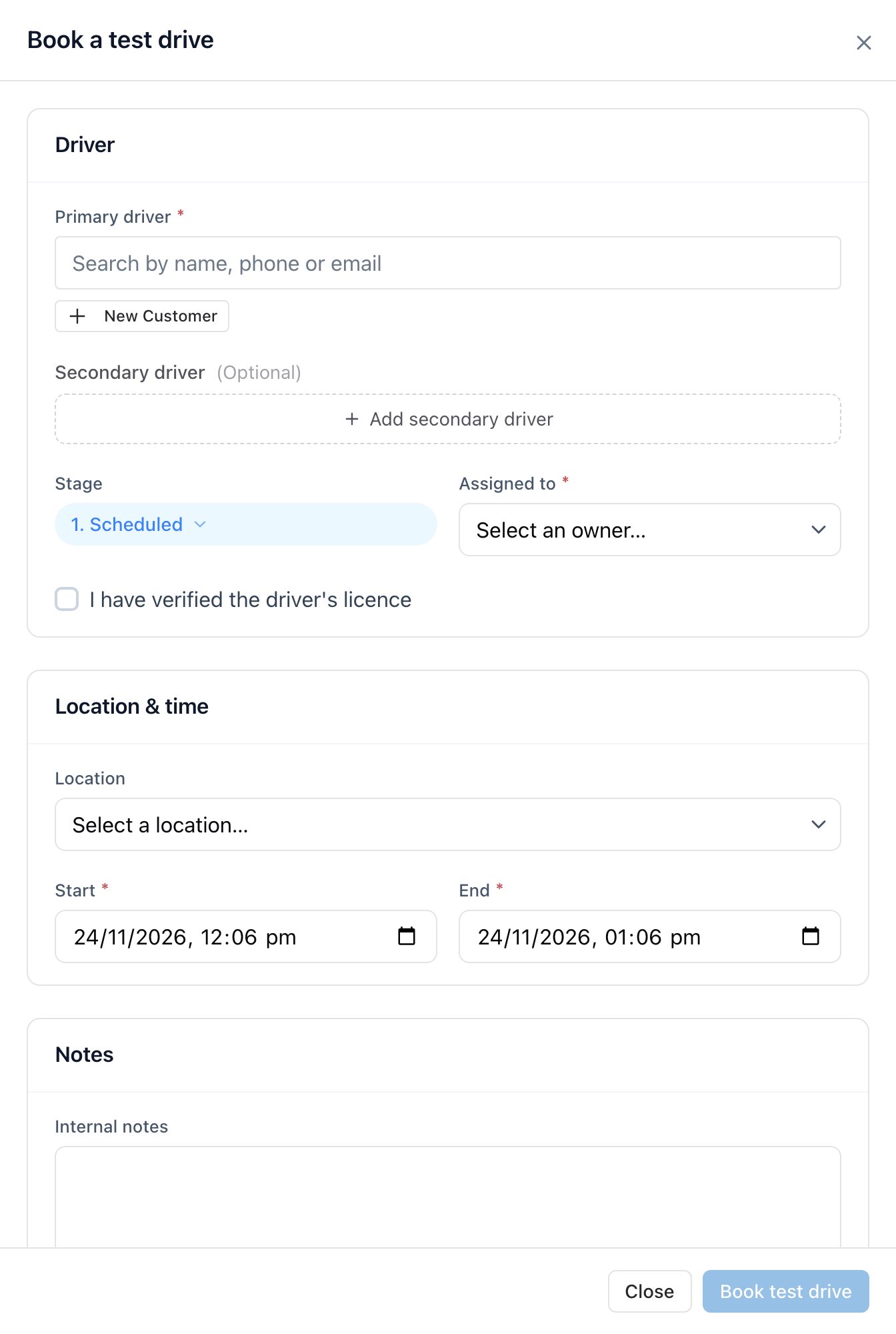
You can also book from a customer's record with Schedule test drive under Next Actions. That opens a longer panel, Book a Test Drive, with the car, time, drivers and licence on one page; fill it in and select Save changes.
Under Driver, choose the Primary driver: start typing their name, phone or email. If they are new, select New Customer. Add a Secondary driver if someone else will drive too.
Leave Stage as 1. Scheduled, and under Assigned to, choose who will take the drive. If you've already seen their licence, tick I have verified the driver's licence.
Under Location & time, choose the Location and set the Start and End.
Add Internal notes if it helps, such as the car they asked about. Notes are never shared with the customer.
Select Book test drive.
Choose the car
- In Test Drives, open the booking.
- Open the Vehicle tab, select Allocate Vehicle and choose the car from your stock. Its stock number, registration, badge and colour show once it's chosen.
- Select Save. The booking closes; open it again to check.
On the day
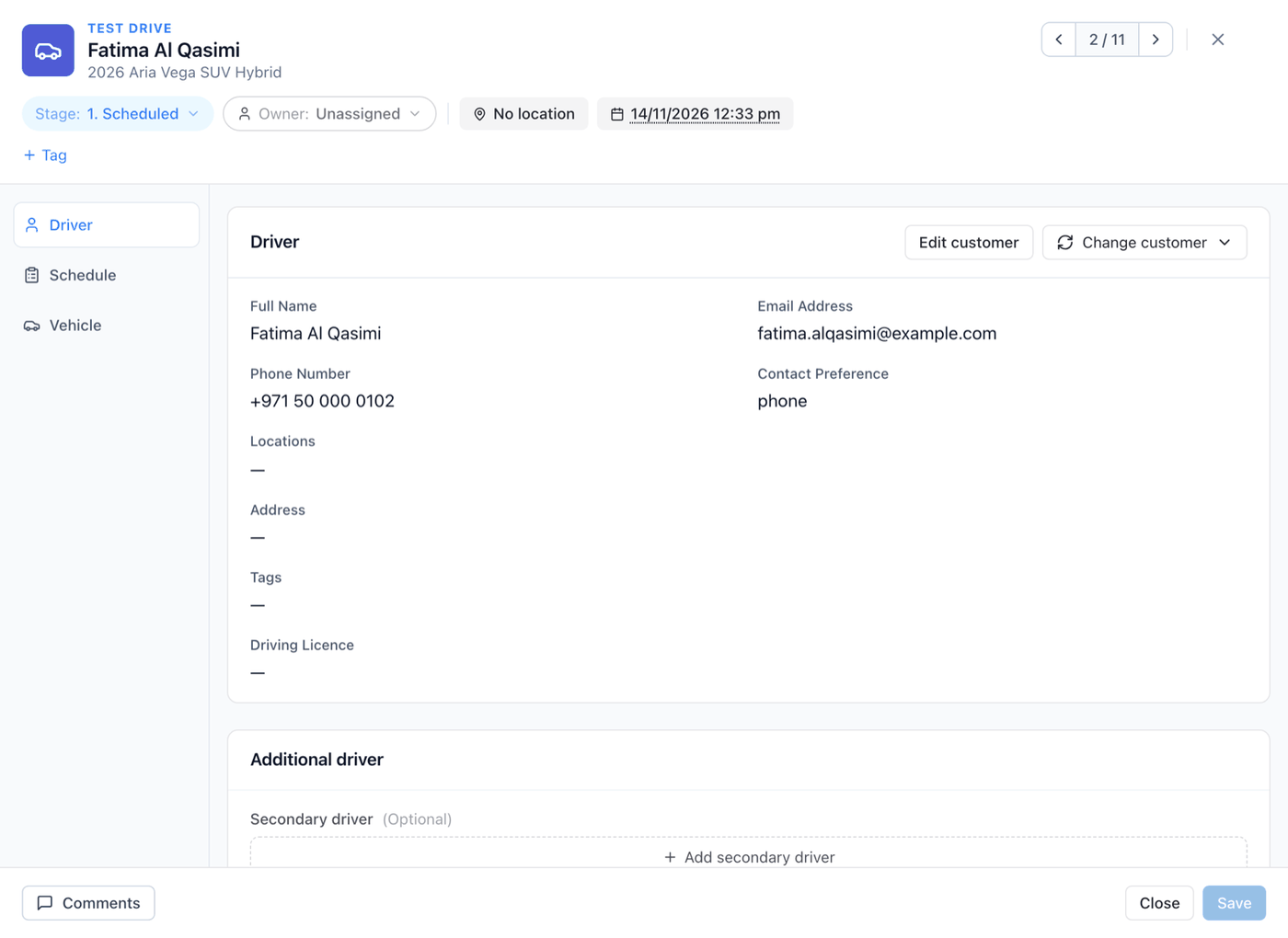
- Open the booking. Check the customer's details on the Driver tab and add a second driver under Additional driver if someone else is driving too.
- Check the driver's licence. On the Schedule tab, tick Driver licence verified and select Save. The booking then shows Licence verified at the top. To keep the licence number on file, select Edit customer on the Driver tab.
- When they set off, select the Stage at the top and choose 2. In progress.
- When they're back, choose 3. Completed. Select Comments at the bottom to note how it went for your team.
Result
The test drive is on the customer's Test Drives tab and Timeline. If your showroom uses next best action, a drive still marked Scheduled after its time shows on the customer as, Record the test drive outcome, so it doesn't get forgotten.
Good to know
- To move a booking, open it and change the time on the Schedule tab.
- If the customer can't come, change Stage to Cancelled.
- Use the arrows at the top of an open booking to step through the list without closing it.
- Which models customers can book on your website is set by your owner or manager. See Choose which models customers can test drive.