
Update inventory prices from a pricelist
If your import template prices vehicles from a pricelist, you can upload a new pricelist whenever your prices change. The Inventory Bulk Import app then publishes your last inventory upload again with the new prices. Nothing else about the vehicles changes.
Before you start
- Your template must price from a pricelist. If the Pricelist tab says "No template prices from a pricelist", your template takes prices from somewhere else, such as your configurator. Contact support to switch it.
- Upload your inventory at least once first. A pricing update re-publishes your latest completed inventory upload, so there must be one. See Upload inventory from a spreadsheet.
- Keep the same columns. The new file must be a CSV or Excel (
.xlsx) file with the same column headers as your current pricelist. Your template's pricelist settings are kept, and they point at those headers.
How prices are worked out
Your template's pricelist settings, set up with Vyro, name the columns to use:
- One column names the vehicle, for example its model and variant. Each vehicle is matched to the row with the same name. Case, accents and spacing are ignored.
- Some columns add to the price, such as the recommended retail price.
- Some columns are subtracted, such as rebates or promotional discounts.
The price customers see is the total. For example, a row with a retail price of 330,000, a 13,000 rebate and a 27,001 promotion prices the vehicle at 289,999.
A vehicle whose name has no matching row doesn't get a price from the pricelist. To check the matches, run a test run on the Test run tab after updating. Each processed row shows the pricelist row it matched and its price.
Steps
- Sign in at https://vyro.co/access.
- In the sidebar, click All services.
- Under Apps, click Inventory Bulk Import.
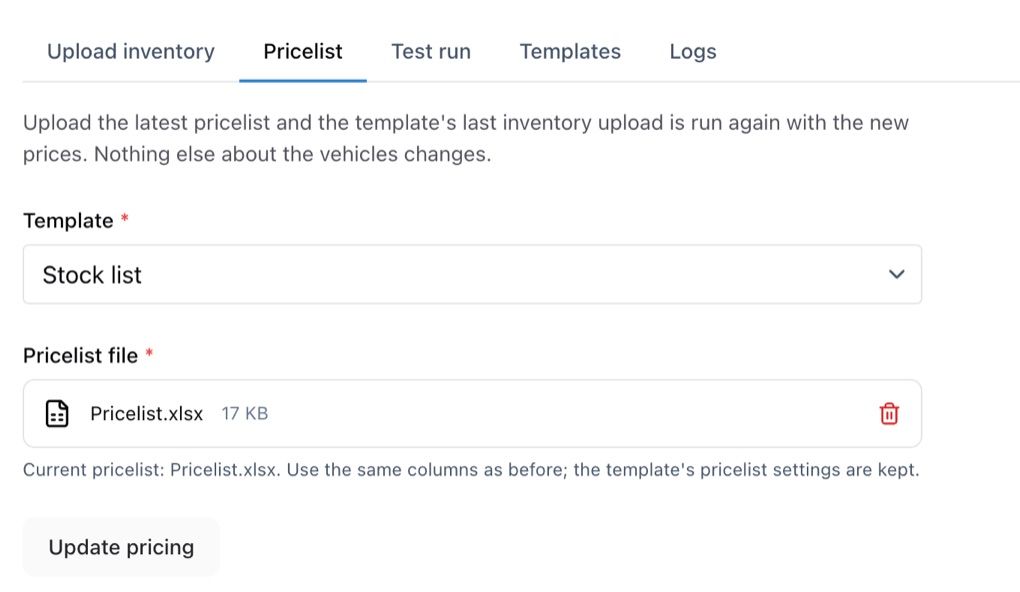
- Open the Pricelist tab.
- Choose your Template. The note under the file box names the current pricelist.
- Select the new Pricelist file.
- Click Update pricing. You'll see Pricing update queued., naming the inventory file that's being published again with the new pricelist.
Result
- Open the Logs tab and click Refresh. The pricing update is listed as a new upload of your last inventory file.
- Wait for its status to change to done.
- Check the new prices under Inventory in the dashboard, or on your website. They can take a few minutes to appear on the website.
The new pricelist becomes the current one. Later inventory uploads use it too.
If something goes wrong
- "The pricelist has no … column": the new file is missing a column your template's settings need. Fix the header in the file, or ask support to update the template's pricelist settings.
- "This template has no completed inventory upload to re-price": upload your inventory file once first, then update the pricing.
- A vehicle has no price, or the wrong one: check the test run for that vehicle. Its name probably doesn't match any row in the pricelist's vehicle column. Fix the name in the pricelist and update the pricing again.