
Create an order and take a payment
Last updated September 8, 2026
An order is the customer's commitment to buy one car. It holds the car, the price, any trade-in and finance, the payments, the paperwork and the handover. Anyone who can edit orders can create one.
Create an order from a quote
This is the quickest way, because nothing is typed twice.
- Sign in at https://vyro.co/access.
- Go to Customers, open the customer and open the Quotes tab.
- Open the quote the customer accepted, select Mark accepted, then Create order.
The order starts with the same car and price, and the car comes off sale. See Quote a car for a customer.
Create an order from scratch
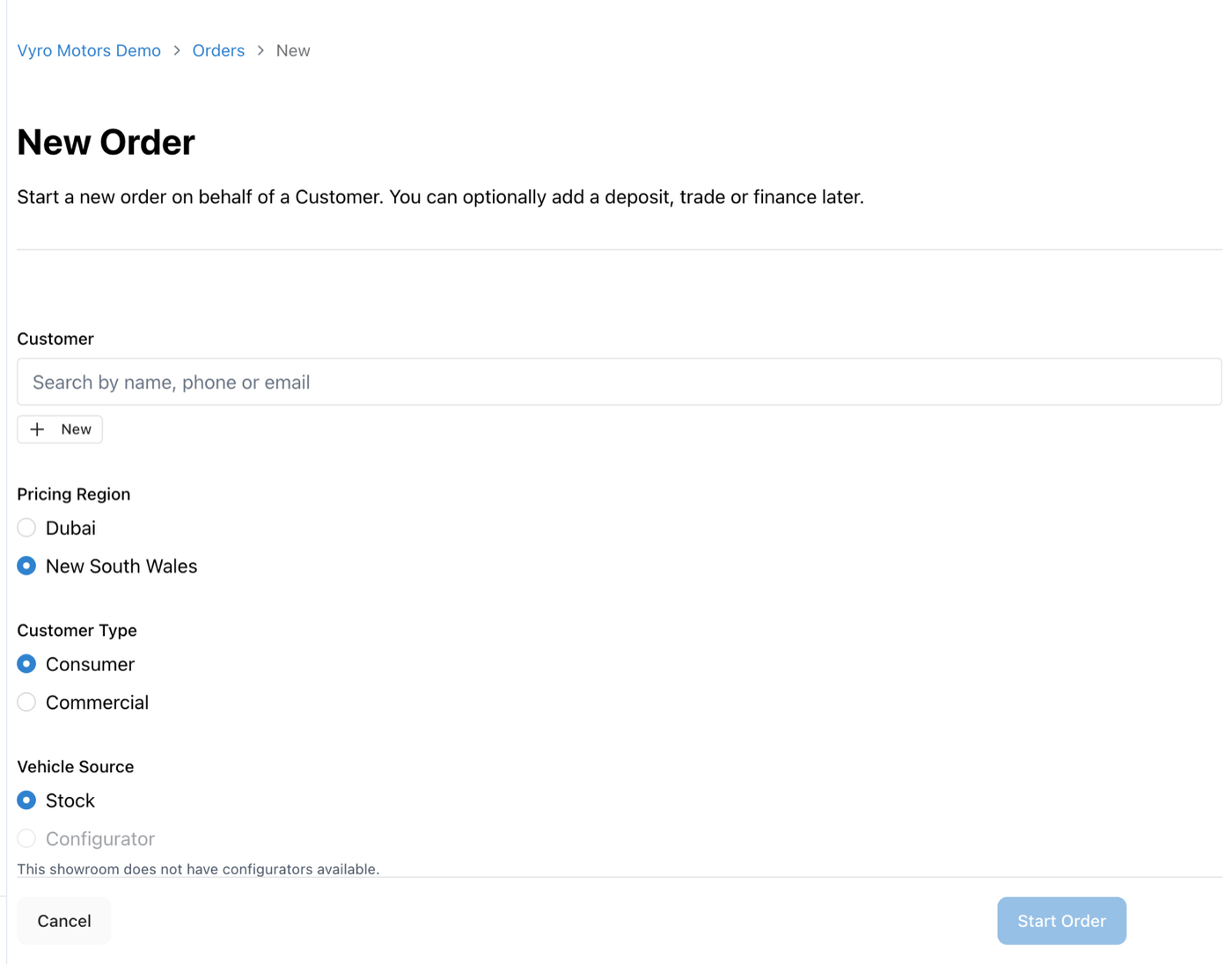
- Go to Orders and select New Order, or select Create order under Next Actions on the customer's record.
- Under Customer, search by name, phone or email, or select New to add them.
- Choose the Pricing Region and Customer Type: Consumer or Commercial.
- Under Vehicle Source, choose Stock to pick a car you have, or Configurator to order a car built to the customer's choice.
- Choose the Vehicle.
- Select Start Order. You can add a deposit, trade-in and finance afterwards.
Work through the order
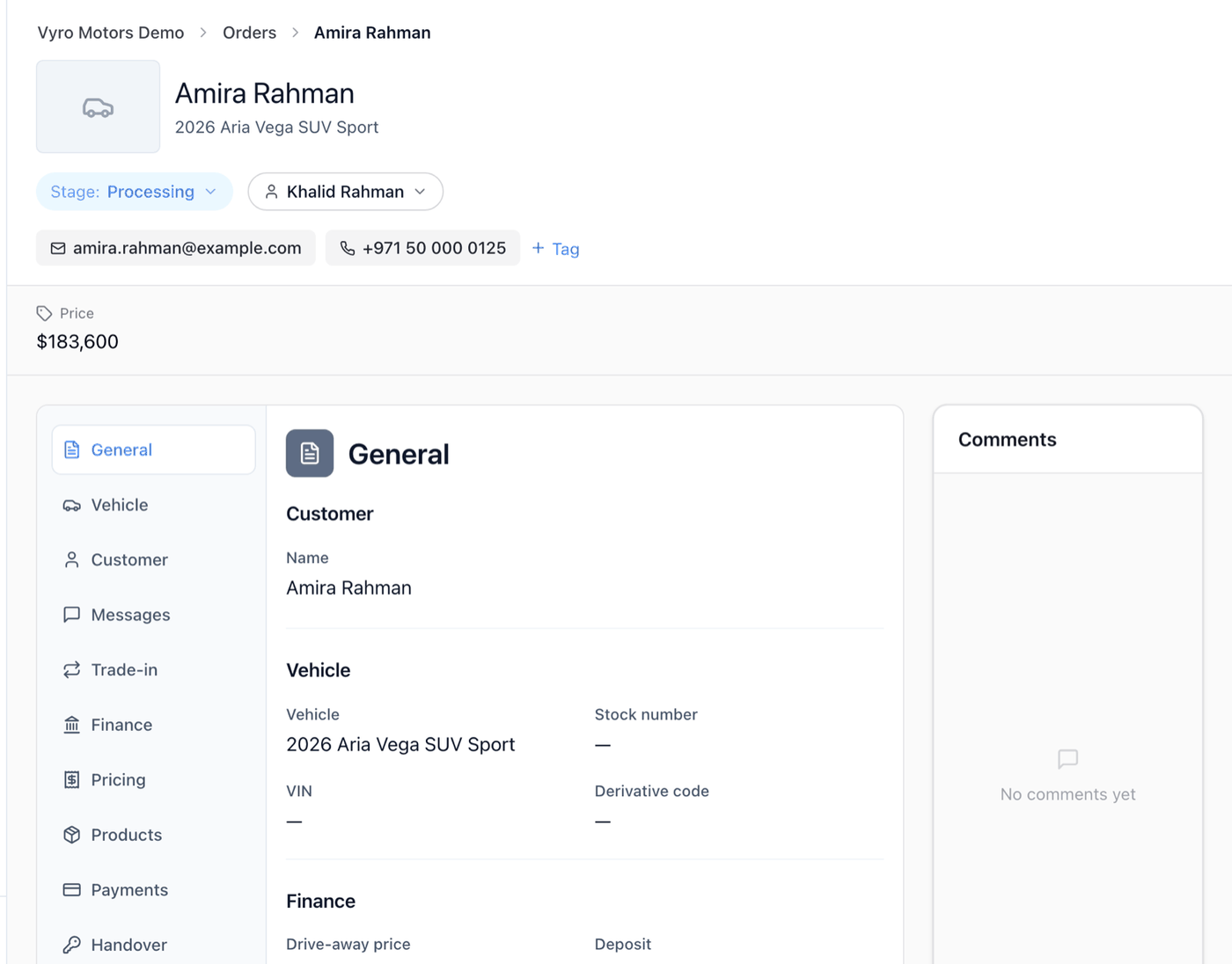
Open the order from Orders or from the customer's Orders tab.
- Stage, at the top, shows where the order is up to. Select it to move the order on.
- The owner beside it is the salesperson responsible. Select it to change them.
- The tabs hold each part of the deal: Vehicle, Customer, Messages, Trade-in, Finance, Pricing, Products, Payments, Handover, Documents, and the Audit of every change.
Record a payment
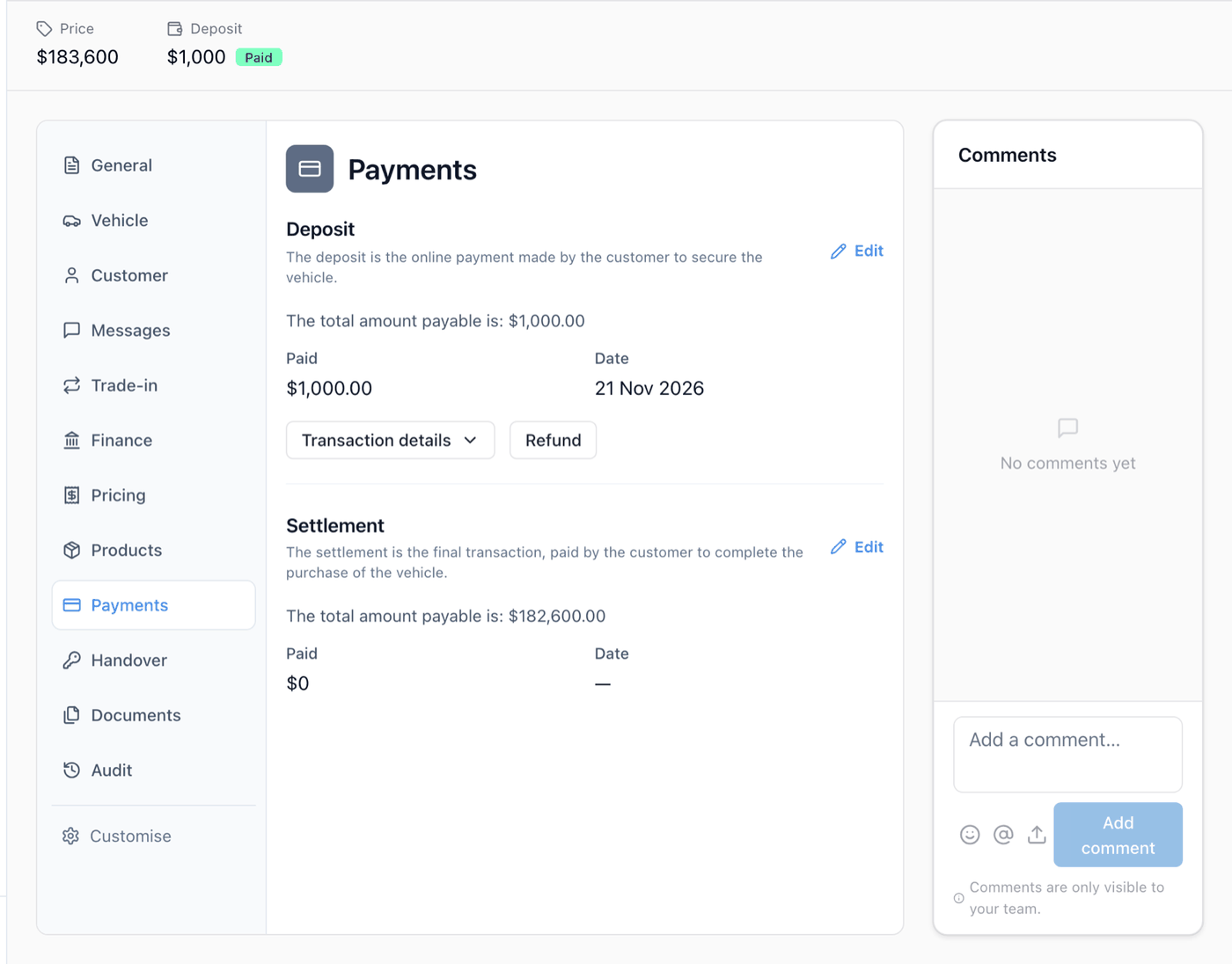
- Open the order and open the Payments tab. If it says No payments, this order has no deposit or settlement set up yet, for example an order started in the dashboard. Ask your manager how your showroom takes payment for those orders.
- Deposit is the payment the customer makes to secure the car. If they paid online, the amount and date are already filled in and the price summary at the top shows Paid. If they have not paid yet, select Payment link to open the page where they can pay, and send them the link.
- To record a payment made another way, such as the Settlement paid by bank transfer, select Edit beside it, type the amount in Paid and set the Date. Today and Yesterday fill the date in one tap.
- Select Save.
Refund a deposit
Open Payments, select Refund under the deposit, check the details and confirm. Only some roles can refund; if you don't see Refund, ask your manager.
Good to know
- Transaction details under the deposit show the payment provider, the reference and the currency, which helps when you match payments in your accounts.
- When the order is ready for paperwork, see Send a document for signing. When the car is ready, see Hand over a car.
Related
Was this article helpful?